Frequently asked questions
What stores most often ask before they start, answered with what the product does today. If your answer is not here, send it through Contact us below.
Getting started and installing
Any store where you can add one line to the head. The console shows a guide for each of Cafe24, imweb, Sixshop (standard and Pro) and Shopify; Godomall, MakeShop and self-built stores follow the general guide.
Installing on Cafe24Installing on SixshopInstalling on imweb and Shopify
You paste one line into one field of the admin. There is nothing to install per product, and no access to product or member data is requested.
- Start Sign in with Google from Start free, create a site with Cafe24 as the platform and your store's address, then press Start trial.
- Install In the Cafe24 admin, open Store settings › Basic settings › Search engine optimization (SEO) and expand the code input under Advanced settings. Paste the line the console gives you into the Head area of the PC store tab and save, then add the same line on the mobile store tab.
- Verify Open a product page of your store once; the server checks within seconds and the site overview turns to Verified.
- Place Choose where it stands: a chip on the product photo, an inline button under the buy buttons, or a launcher in the corner.
- First try-on Try it on in your own store.
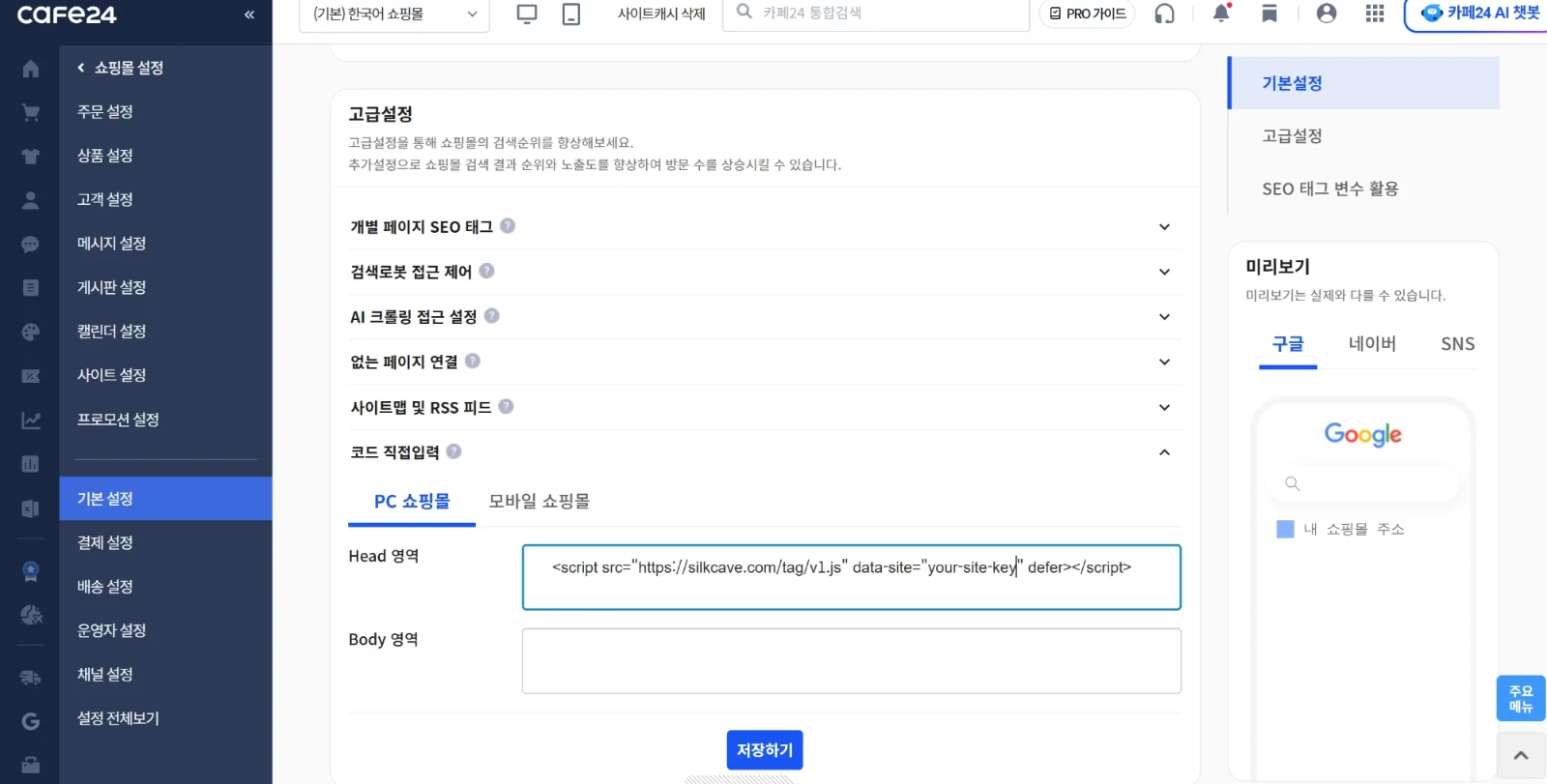
Before signing up you can preview it on your store from one product address, and try the shopper's side in the demo store. To undo it, delete that line on both tabs and save.
Sixshop standard: in the admin's left menu, open Add-ons › All, add the Code insertion card with its +, and open Code insertion under Add-ons. Paste the line below the last line of the existing code in the <head> field of the common area at the top and press Save changes; it applies to every page on PC and mobile at once.
Sixshop Pro: in Website › Design, press Edit design on the published design, then open Theme settings (the gear at the top) › Custom code › Edit code under <head> code. Paste the line, save, and press Publish site at the top right. If you publish another design, add the line to it too.
For both, open the public store afresh on PC and phone and press Try on. If product details open in a pop-up, press it there too and check that the product's photo appears.
imweb: in Settings › SEO, turn on common code insertion under advanced settings, paste the line into the Header Code field and save.
Shopify: in Online Store, open Edit code from the current theme's … button, paste the line right before </head> in theme.liquid in the layout folder, and press Save. If you publish another theme, add it to the new theme too.
Godomall, MakeShop and self-built stores: add the line once to the common head every page uses, then save or deploy.
No. It is pasting one line into the head field of the admin and saving. If you get stuck, send a screenshot of the admin through Contact us; we point out where the line goes and can set up your site on request.
No. The line only reads the photo and name on the product page; it receives no access to product or member data.
The line loaded first is under 3KB, and pages without an entry point load nothing after it. The try-on screen loads when the page is idle or when a shopper reaches for an entry point. It draws in its own layer that does not mix with your store's styles, and it uses no cookies.
Your store's button stays where it is; Silk Cave's launcher moves to a free spot. Choose the avoidance direction in the console's design or placement preview: vertical (the default) moves above the overlapping button, horizontal moves inward from the chosen corner, and it moves up when there is no room sideways.
It moves again when a button appears late or changes size, and returns to its place when the button goes away. The chip on a product photo also moves to another corner when a fixed button covers its corner.
Product photos and results
Yes. Nothing needs to be reshot. Silk Cave picks the product page's main photo, and you can choose the product photo yourself in the console's design. The face and body in a result always come from the shopper's photo, and the garment always from the product photo.
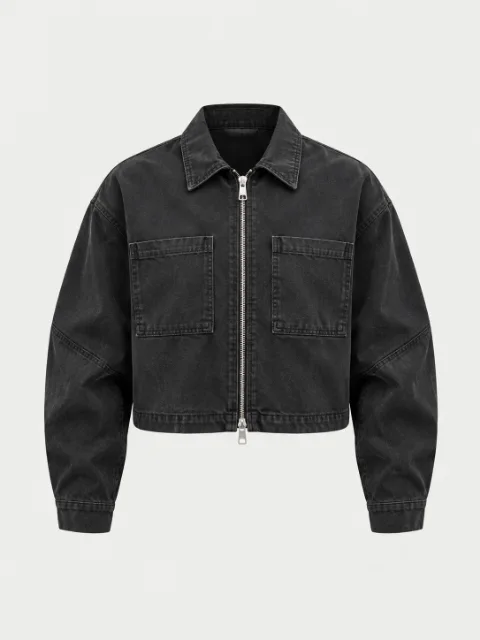

Photos that work well show one whole garment from the front, uncropped. On a model, on a mannequin or laid flat all work; a photo without a model is fitted to the pose of the shopper's photo.
Harder photos: several people in one photo, a garment partly cropped or covered, detail images with text or graphics over them. When a photo holds several garments, the shopper chooses which to change (top, bottom or full outfit). Details such as straps and zippers can differ, so results are marked as AI-generated.
A bright photo of one person, facing forward, head to toe, works best. The photo is uploaded once and used for other garments too.
What to change is automatic by default (decided from the product name and photo), and the shopper can choose top, bottom or full outfit. Pose and background also follow the shopper's photo by default, and the product photo's composition can be chosen instead. Either way, the face and body are the shopper's.
Results are marked as AI-generated, and the mark stays on saved files too.
Pricing and trial
Before signing up: preview it on your store from one product address, free.
Free: 30 days at no cost, once per store, with no card. Site: 15/day · 20 per 30 days, Per device: 5/day · 20 per 30 days.
After that: Light ₩9,900 (Site: 5/day · 30 per 30 days), Starter ₩39,000 (Site: 30/day · 150 per 30 days). Pay-as-you-go, using the images you top up, is also available under Plan & billing in the console.
Paid plans are ordered in the console and paid by bank transfer (30 days from payment confirmation · no automatic renewal). Prices include VAT.
Order a paid plan in the console and pay by bank transfer. It runs for 30 days from the day the payment is confirmed and is not charged again automatically.
The shopper's sheet says whose limit ended and when it opens again; it does not count down the remaining tries in advance. The console's overview and usage show the images left and how many more can be made today.
What virtual try-on covers
Virtual try-on shows this garment on the shopper's photo, for judging color, length, mood and how it goes with other clothes. Size recommendation suggests which size to buy from the body and the product's measurements.
Today it fits garments from the product photo and product information, so the fit (ease and length) may not match reality precisely, and results are marked as AI-generated. It is best read together with the size chart and measurements on the product page.
Silk Cave is working on reproducing fit precisely with computer vision and product measurement data. Given exact product measurements, the fit for that product can be upgraded to be more accurate.
Try-on photos and results are deleted automatically from Silk Cave's servers after 24 hours. The external AI generation service that receives the photos may keep them for up to 30 days for abuse monitoring, with legal and safety exceptions. Photos remembered in the browser and copies shared or saved by the shopper are kept separately.
Turn it off with one switch in the console. You do not need to remove the tag.
When you are stuck
Opening a product page of your store once lets the server check within seconds. If it does not move on, check these in order.
- Check that the domain shoppers see is the domain registered for the site. If it differs, add it in Site settings.
- A password-protected store (such as a Shopify development store) is verified after it goes public.
- If the server cannot read your store because of bot protection, a login or a tag manager, send its address through Contact us in the console and we will verify it.
On a screen where several photos sit at the same size, no chip is placed and the corner launcher opens it instead. Choose the product photo yourself in the console's design, or use Check an address under placements to see which entry points stand on that address.
Before signing up, use Contact us below on this page; after signing up, use Contact us in the console. The people who make Silk Cave read it and reply within one business day.
Sending these lets us answer in one go: the product address where the problem shows, what you did and what you expected, and a screenshot.
Shoppers use Contact support on the try-on screen. Orders, delivery, exchanges and refunds are answered by the store.
Contact us
Ask anything before you start. The people who make Silk Cave read it and reply by email within one business day, and can set up your site on request.