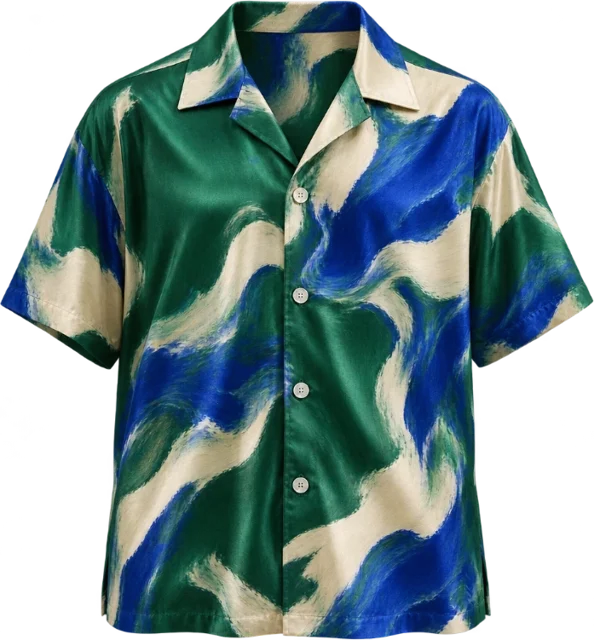
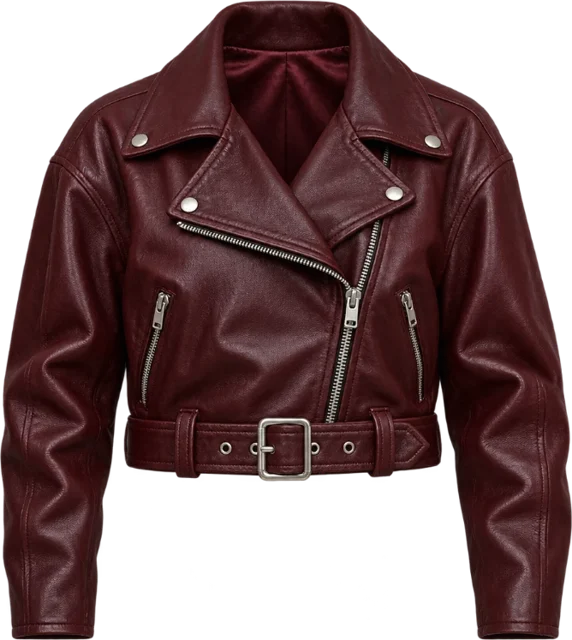
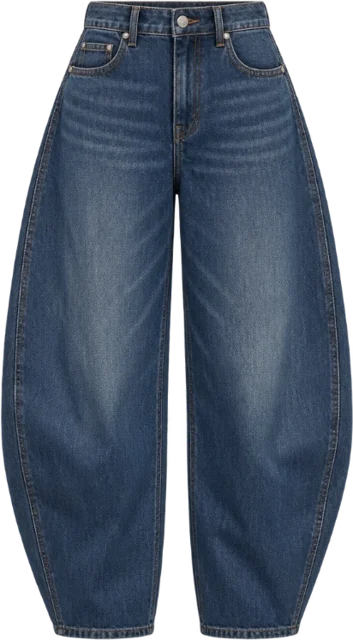
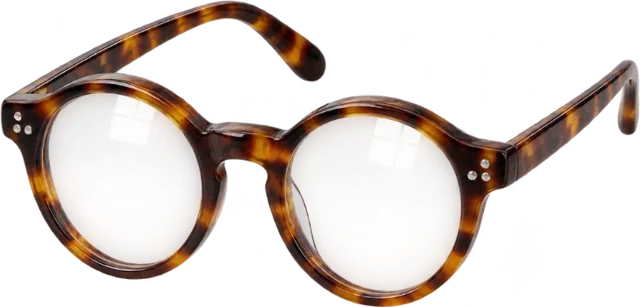
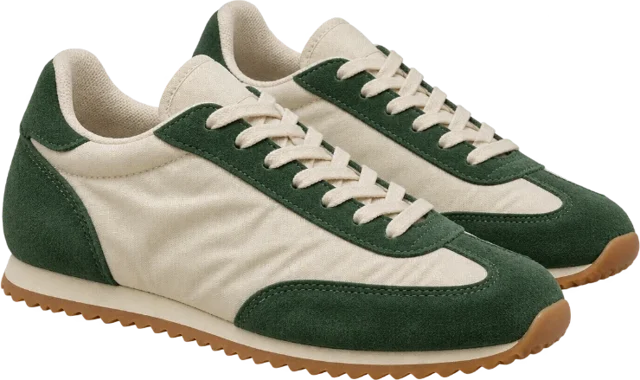
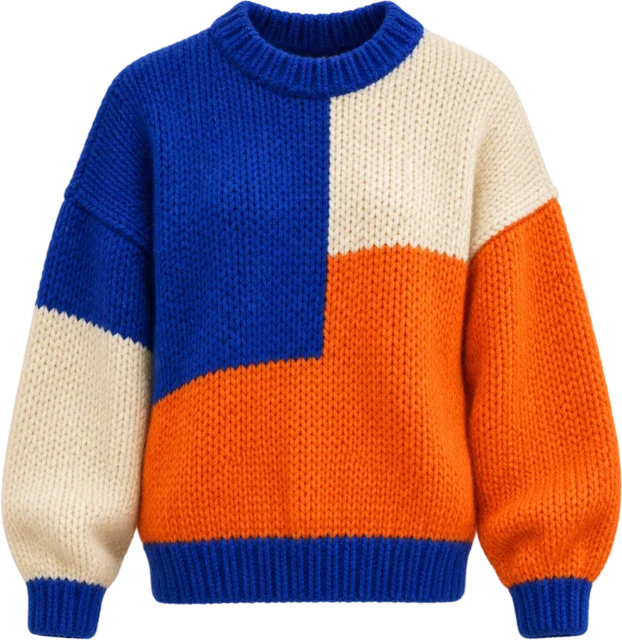
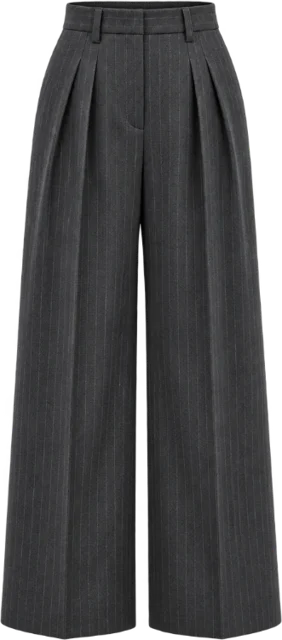
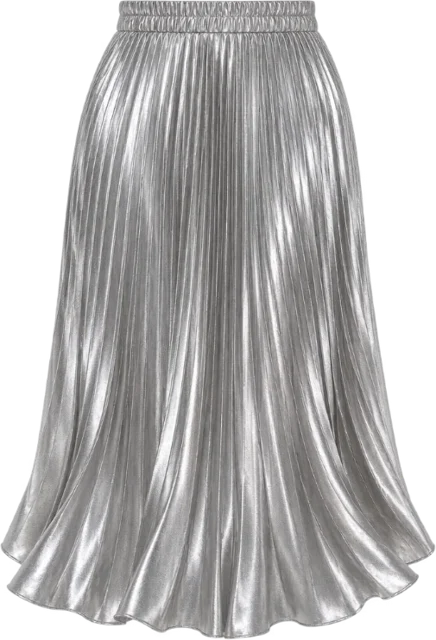
Free
Free
30-day free trial · once per store
Site: 15/day · 20 per 30 days
End your shoppers' hesitation on the product page. Virtual try-on, sizes and product picks, all from one app install with silkcave.
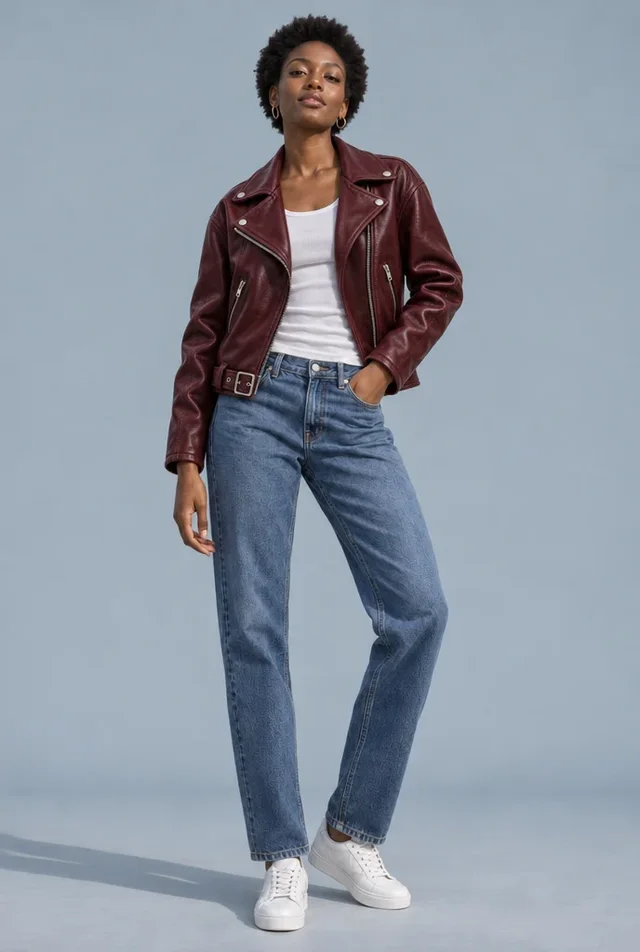
Worn look · staged example
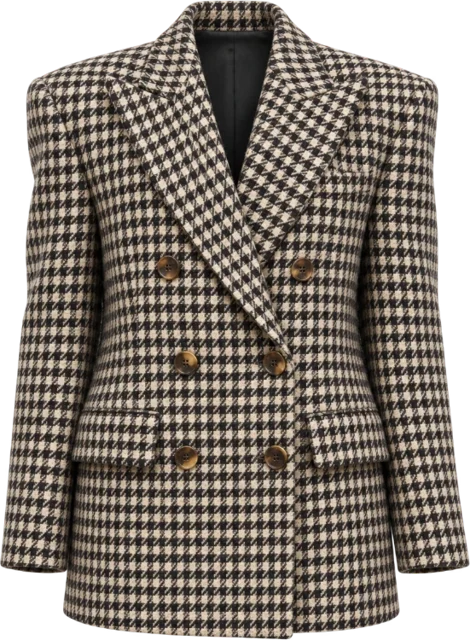
Send a garment with a request, and the look comes out just as you asked.
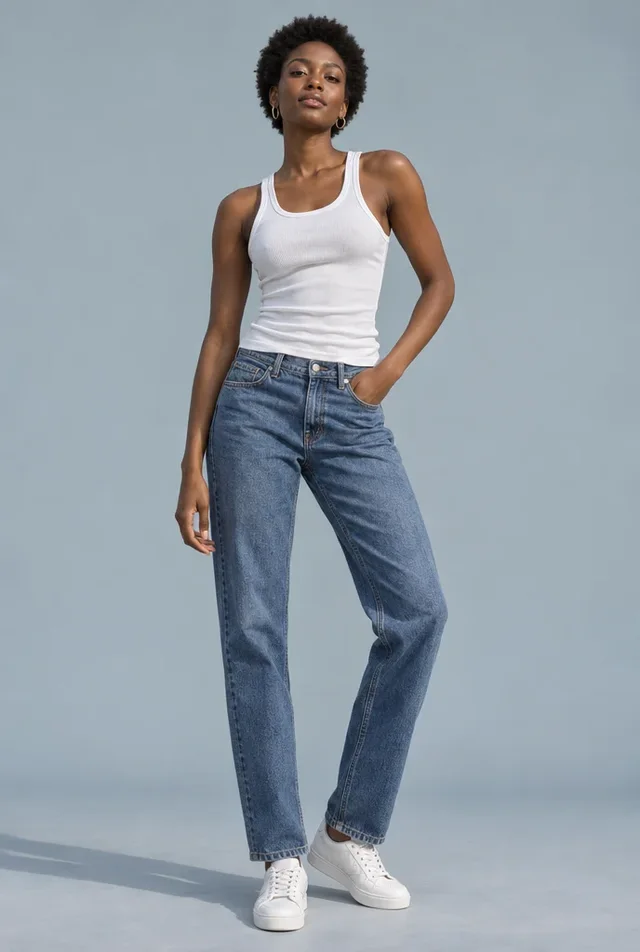
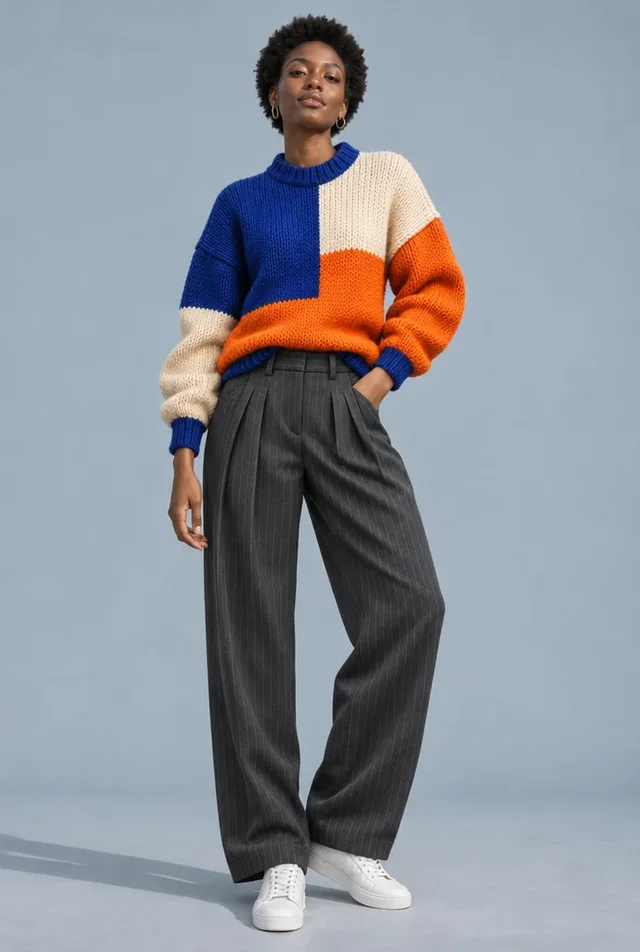
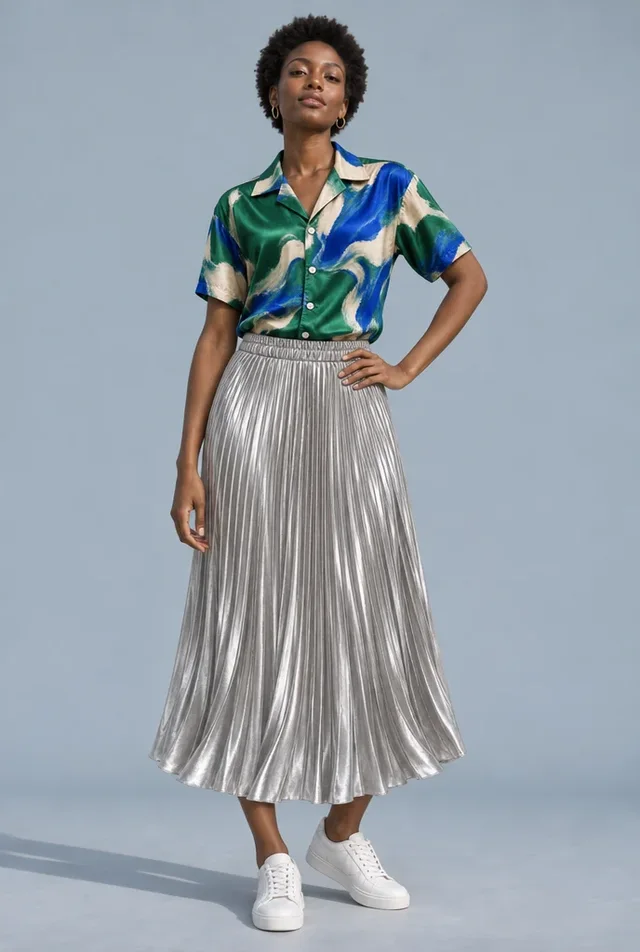
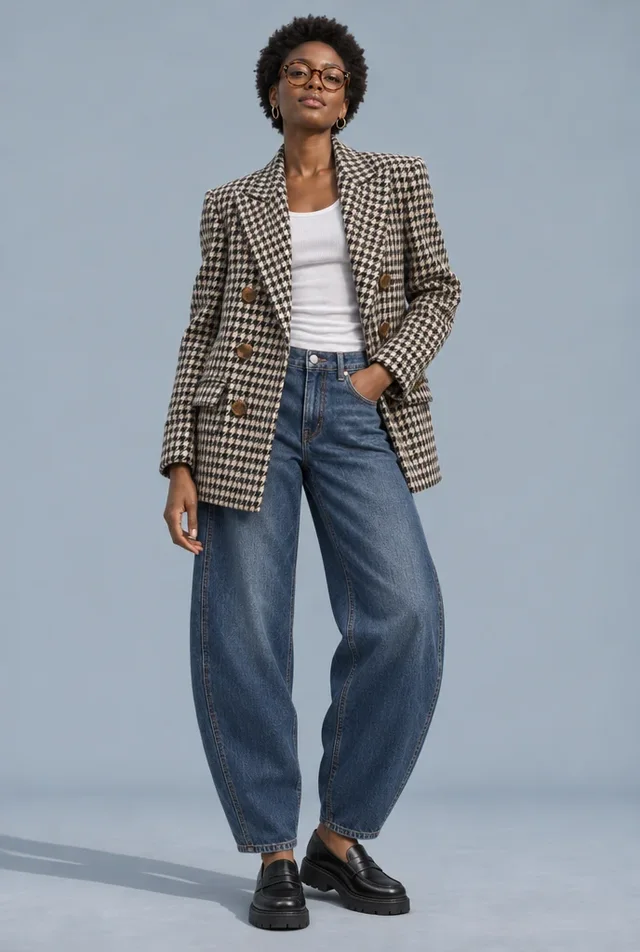
Worn look · staged example

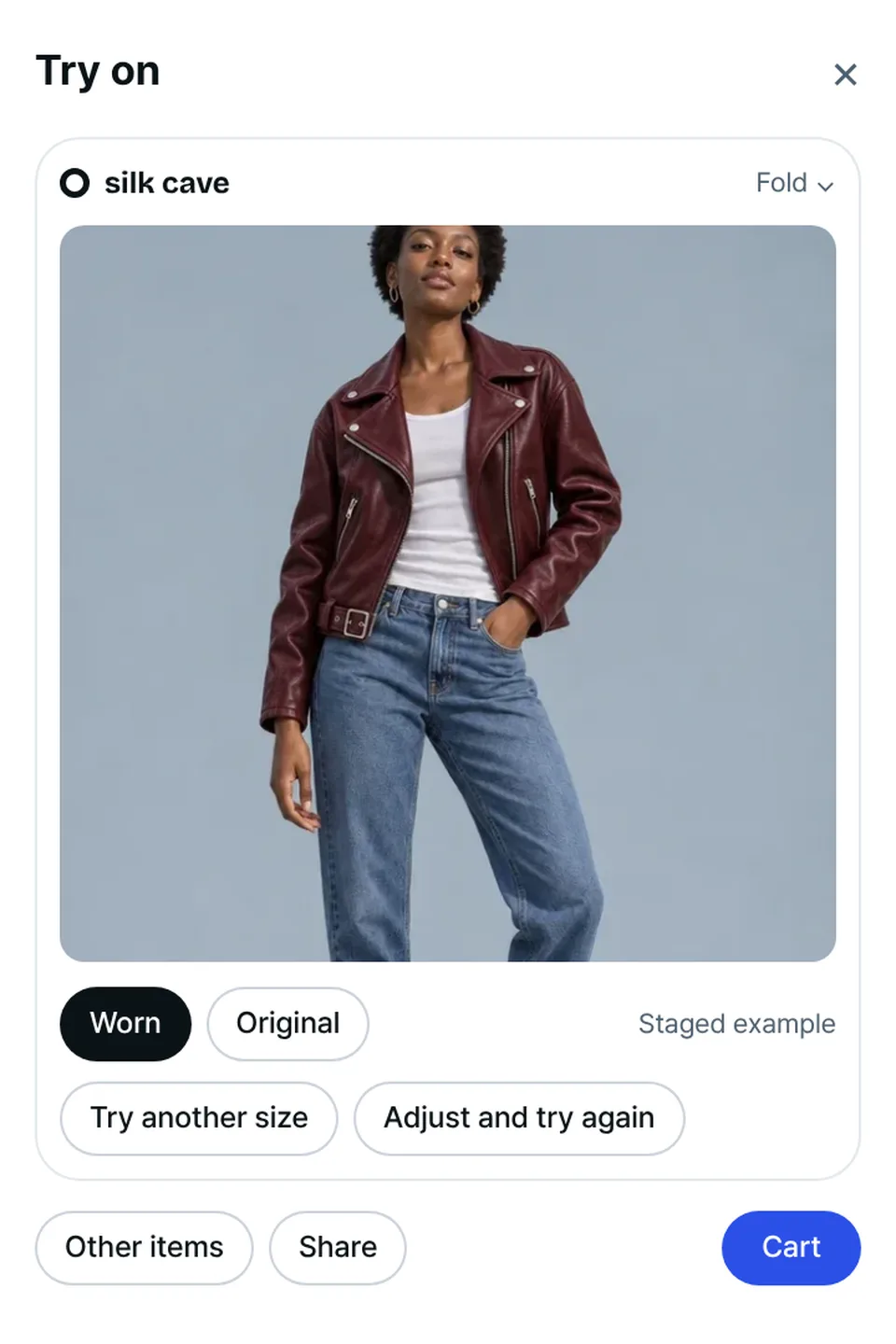
A fictional brand's store with the real Silk Cave installed. Open any piece and try it on with your photo or an avatar.
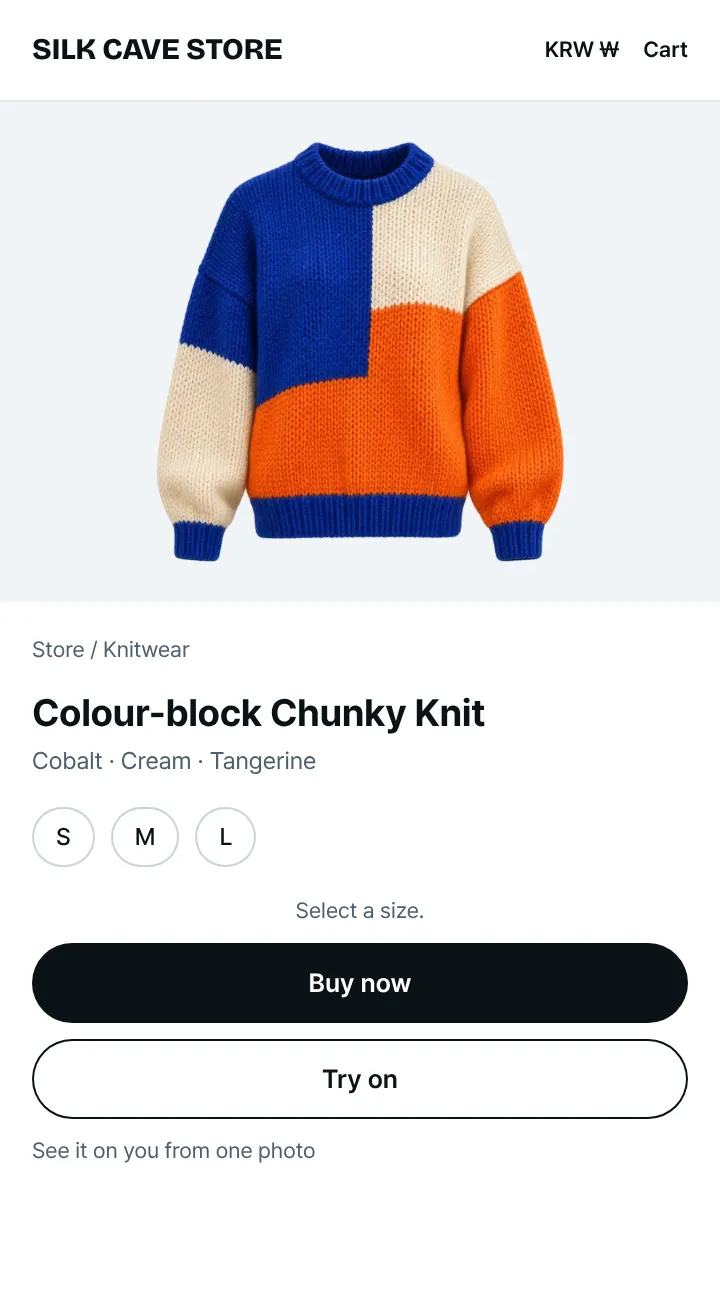
It appears where the store chooses: beside the purchase button and in a corner of the screen.
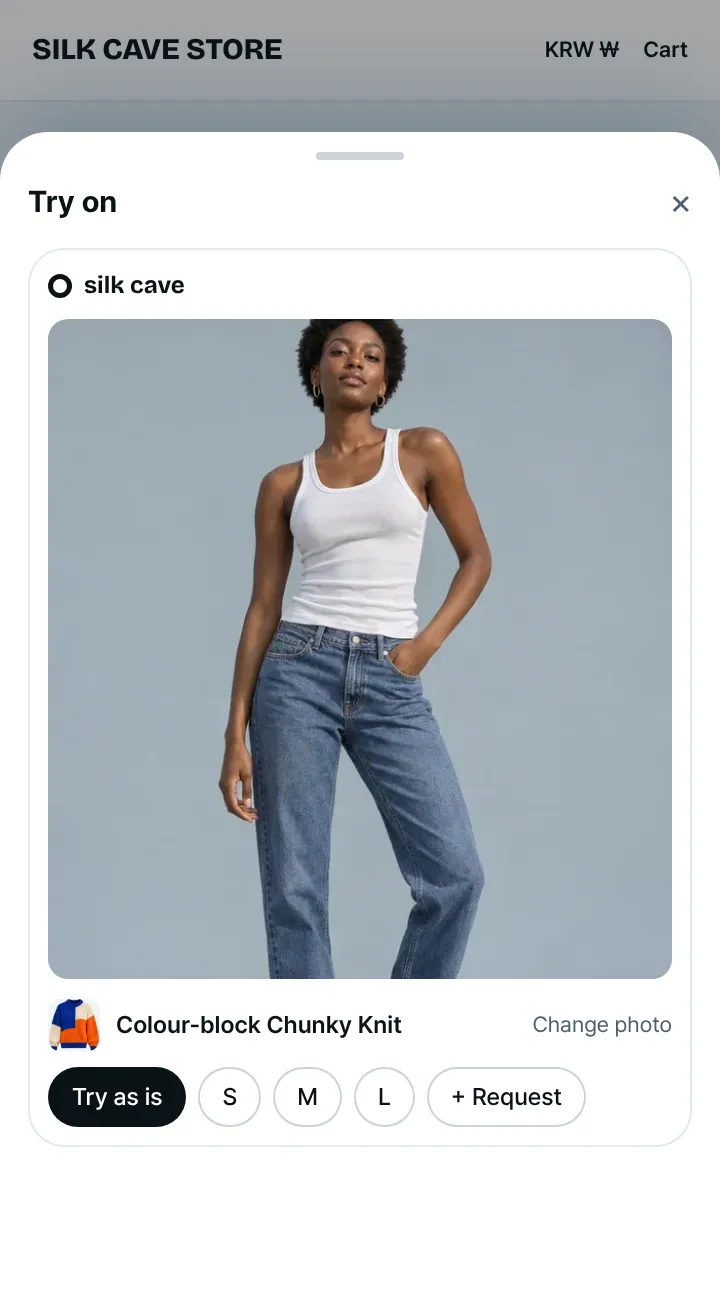
Pick your photo or an avatar; garments with a size chart can be tried in a chosen size.
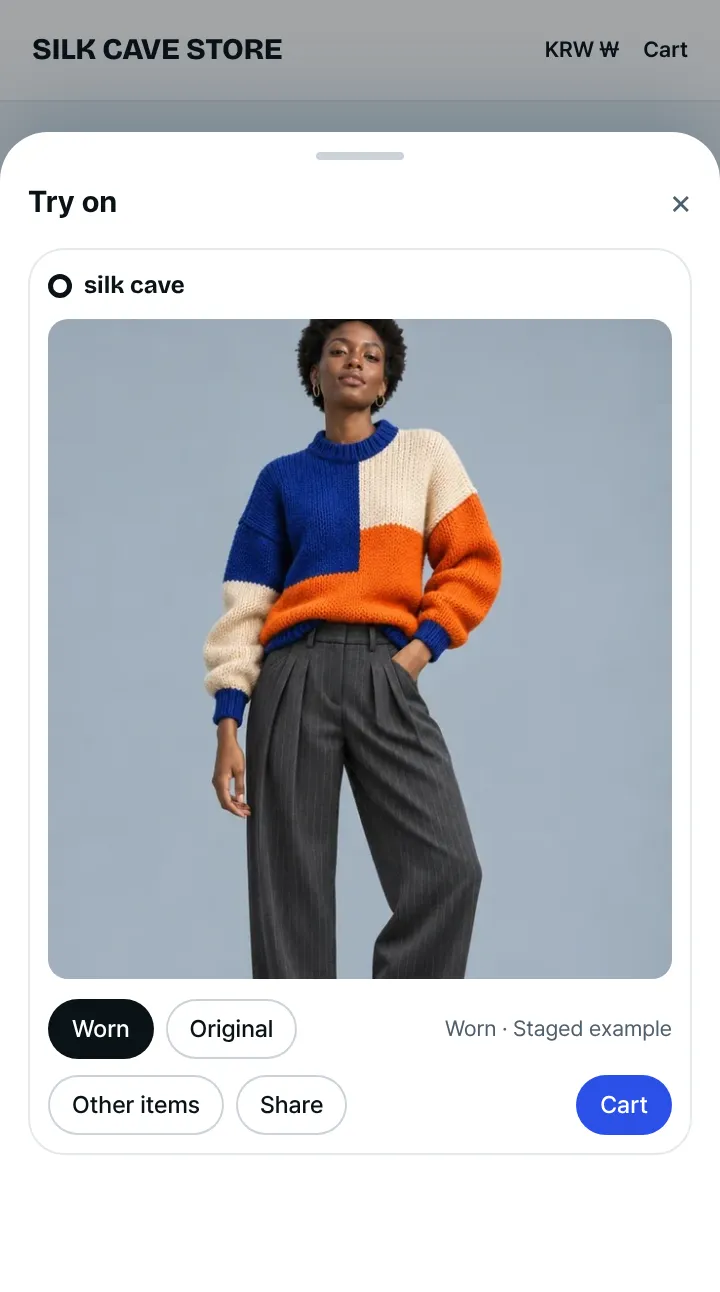
A moment later the try-on appears beside the original photo, marked as AI-generated.
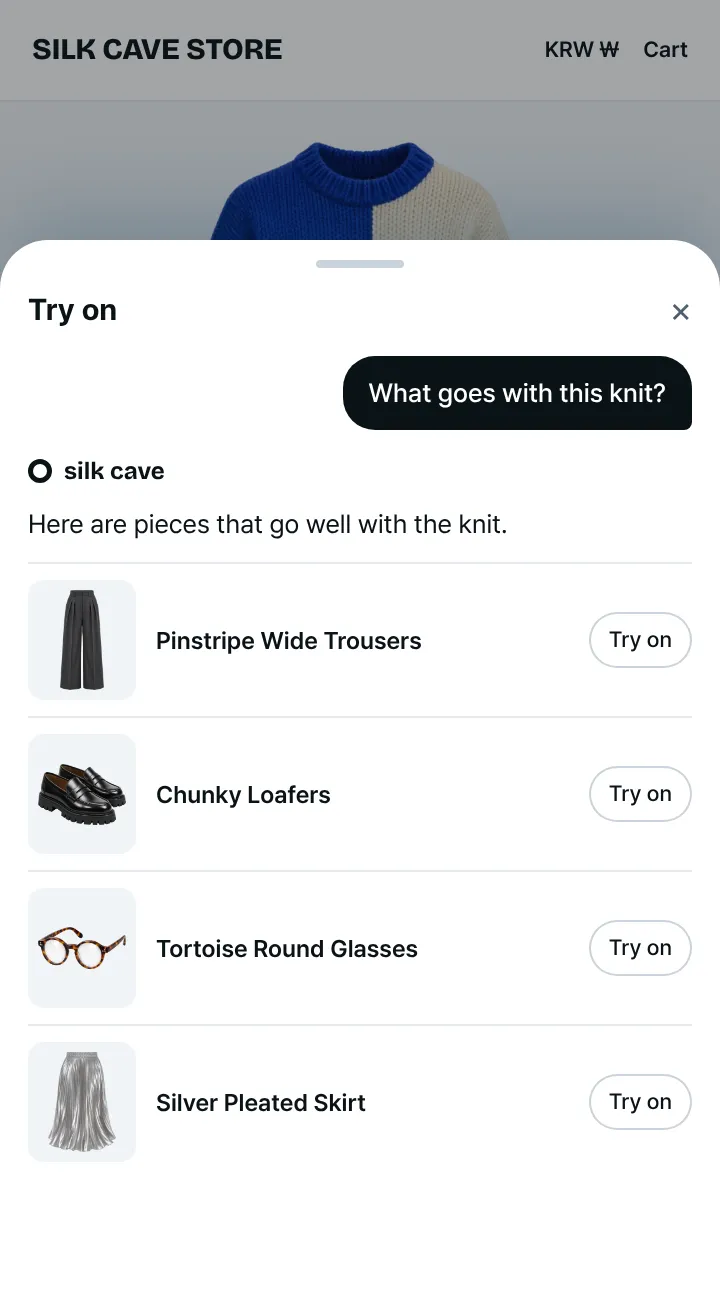
Ask the stylist about the product, size or outfit, then add it to the cart or go on to buy, right there.
Add the app on Cafe24, imweb and Shopify, or the line elsewhere, and Try on appears on product pages. Choose where in the console.
Photos, names and prices are read from the app or the product pages; fix only what you need in the console.
With the garment's measurements, the fit of the size a shopper chooses is shown in centimetres. With the Cafe24, imweb or Shopify app connected, size charts are read too.
Guest photos are deleted from the Silk Cave server after 24 hours and never used for ads or AI training.
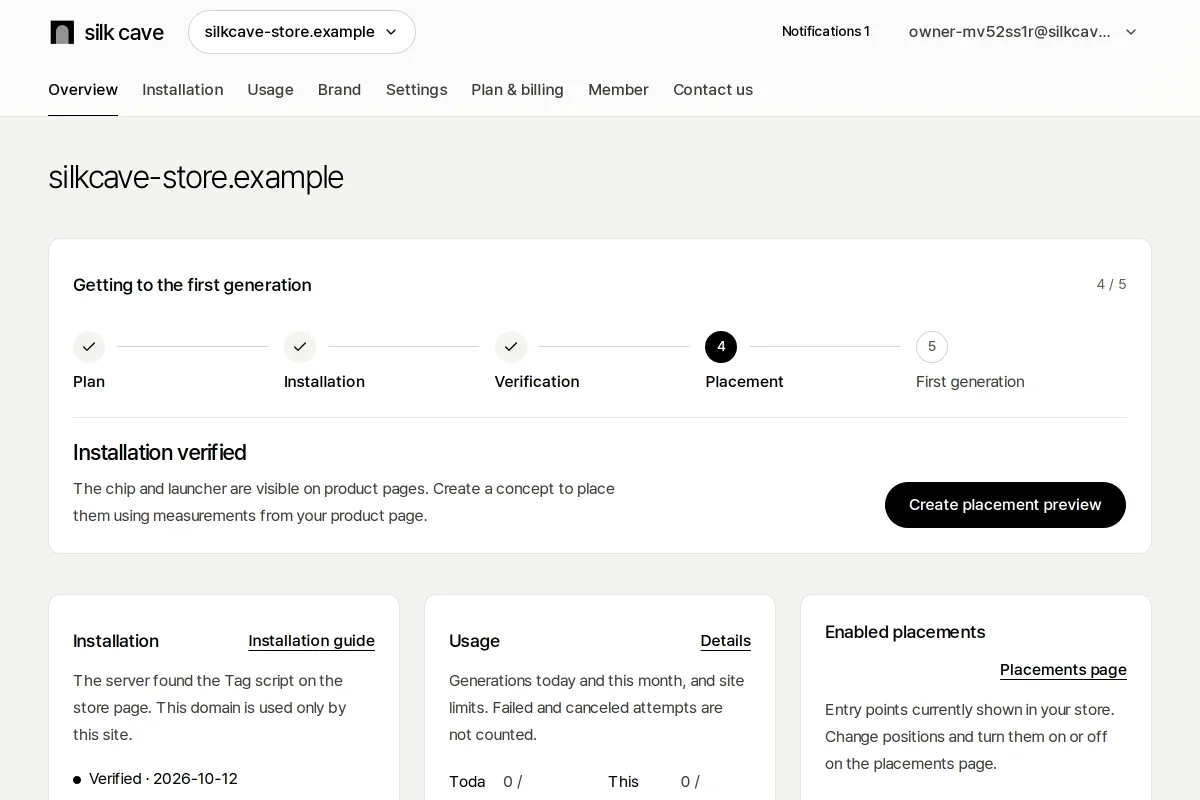
Learn how to connect your store and use virtual try-on on your product pages.
Follow the steps from connecting the app to checking product pages and disconnecting it.
Install the app, connect your site, and check that virtual try-on opens on mobile too.
Review photos, privacy, and day-to-day operations before adding virtual try-on to your store.
Review virtual try-on placement and the path to purchase on Shopify product pages.
One plan per site. Usage is not pooled across sites.
Prices for 30 days · VAT included
Free
30-day free trial · once per store
Site: 15/day · 20 per 30 days
₩9,900
Site: 5/day · 30 per 30 days
₩45,000₩39,000
Currently discounted
Site: 30/day · 150 per 30 days
₩99,000
Site: 60/day · 400 per 30 days
₩179,000
Site: 90/day · 800 per 30 days
₩299,000
Site: 120/day · 1,800 per 30 days
Not sure which plan, or need more than the largest one? We work it out together in a 20-minute demo.
Any store where you can add one line to the head; Cafe24, imweb and Shopify connect through the Silk Cave app in their app stores instead of the line. The console shows a guide for each of Cafe24, imweb, Sixshop (standard and Pro) and Shopify; Godomall, MakeShop and self-built stores follow the general guide.
Installing on Cafe24Installing on SixshopInstalling on imweb and Shopify
On Cafe24, imweb and Shopify, add the Silk Cave app from their app stores and connect it. There is no code to paste: Cafe24 and imweb load the Tag on every page, and on Shopify you turn on the app embed in your theme. On other stores, register your store URL and add the console's tag once. You can adjust the launcher and placement beside purchase controls in the console.
Product photos and basic details are read automatically. With the Cafe24, imweb or Shopify app connected, Silk Cave also reads the product list, photos and options, the size chart in the description, Cafe24's size guide, and the size and material in imweb's product information notice, extracting sizing and fabric details. Edit only the values that need changing on the product screen.
Natural try-on images work without a size chart. Add garment measurements to provide fit reports for each size too.
Yes. Nothing needs to be reshot. Silk Cave picks the product page's main photo, and you can choose the product photo yourself in the console's design. The face and body in a result always come from the shopper's photo, and the garment always from the product photo.
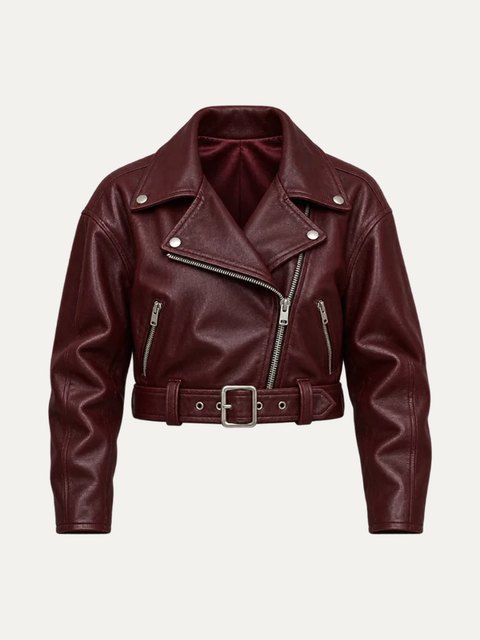
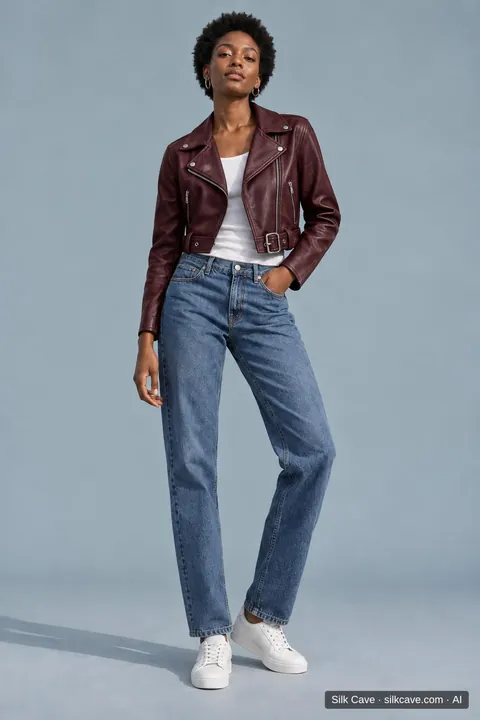
Photos that work well show one whole garment from the front, uncropped. On a model, on a mannequin or laid flat all work; a photo without a model is fitted to the pose of the shopper's photo.
Harder photos: several people in one photo, a garment partly cropped or covered, detail images with text or graphics over them. When a photo holds several garments, the shopper chooses which to change (top, bottom or full outfit). Details such as straps and zippers can differ, so results are marked as AI-generated.
Before signing up: preview it on your store from one product address, free.
Free: 30 days at no cost, once per store, with no card. Site: 15/day · 20 per 30 days, Per device: 5/day · 20 per 30 days.
After that: Light ₩9,900 (Site: 5/day · 30 per 30 days), Starter ₩39,000 (Site: 30/day · 150 per 30 days). Pay-as-you-go, using the images you top up, is also available under Plan & billing in the console.
Paid plans are ordered in the console and paid by bank transfer (30 days from payment confirmation · no automatic renewal). Sites connected through the Cafe24 app pay with Cafe24's payment. Prices include VAT.
Virtual try-on shows the garment on the shopper's photo. It can create a natural try-on image from the product photo without a size chart.
With garment measurements and body details, the fit report shows room by body area and points to check for each size. Consider the fabric's stretch and your preferred fit too.
If size rendering is unavailable, try-on continues naturally and the result is labelled accordingly. AI-generated images may differ from the actual fit, colour and details.
Your store's button stays where it is; Silk Cave's launcher moves to a free spot. Choose the avoidance direction in the console's design or placement preview: vertical (the default) moves above the overlapping button, horizontal moves inward from the chosen corner, and it moves up when there is no room sideways.
It moves again when a button appears late or changes size, and returns to its place when the button goes away.
Guest try-on photos and results are automatically deleted from Silk Cave servers after 24 hours. Photos and results used while signed in stay in your account and can be deleted on your account page. External AI generation services that receive the photos may retain them for abuse monitoring, normally for up to 30 days, with legal and safety exceptions. Photos remembered by the browser and copies you share or save have separate retention.
On a video call we put Silk Cave on one of your product pages and answer your questions about setup, pricing and photos on the spot. We can set up your site with you if you like.
Google Meet · 20 min · English
Book a demoPrefer email? Write to rlaaudgjs5638@gmail.com. We reply within one business day.