Install Silk Cave Virtual Try-On on imweb
Add virtual try-on to an imweb site with Silk Cave. Review app permissions, link your site, check product and sizing data, test mobile placement, and learn how to disconnect.
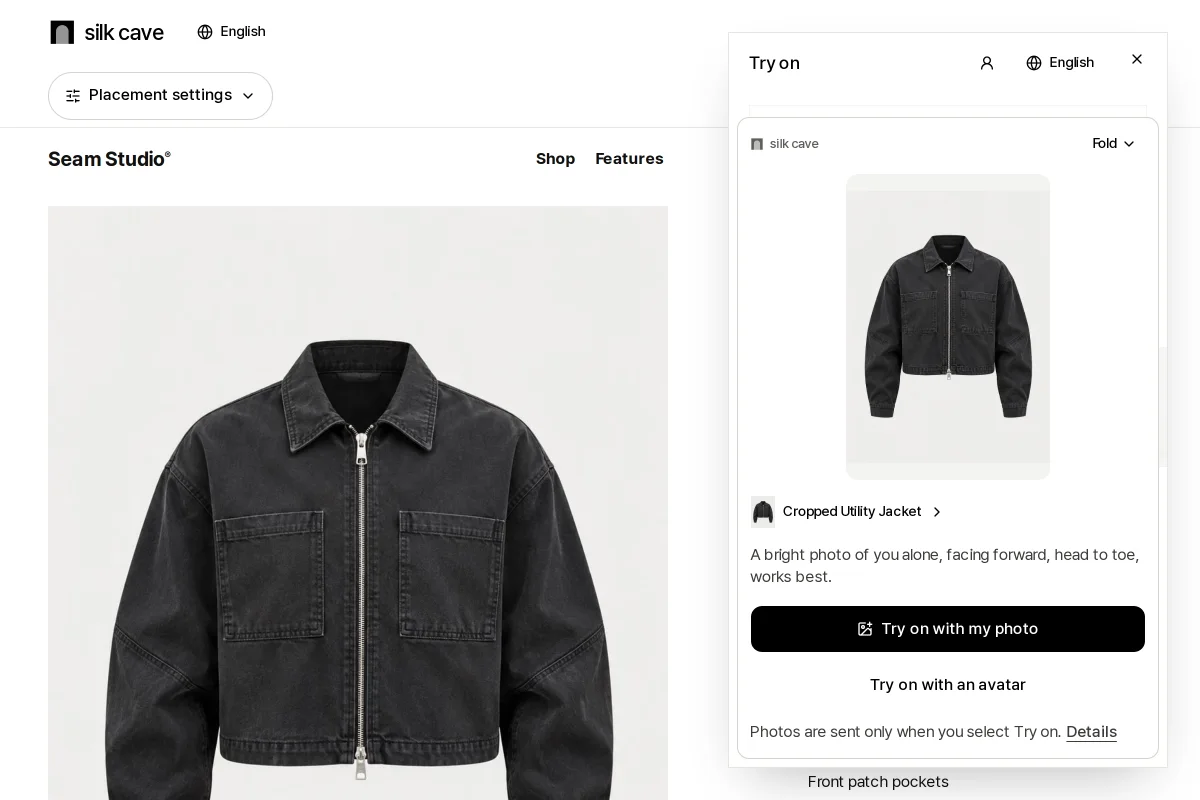 Demo store capture · fictional photos
Connect virtual try-on to an imweb site by adding the SilkCave app from the admin's app store. After approving permissions and linking the site in Silk Cave, imweb loads the Tag. A new app connection does not require pasting installation code into the common code or head field in SEO settings.
This guide covers connection and post-installation checks. The cover shows the shopper experience in the demo store, not an imweb admin or app-store screen. Read Introducing Silk Cave to see what shoppers will use.
Prepare before connecting
- Have an admin account that can add apps and approve permissions for the intended imweb site.
- Check the primary domain and the Google account you will use for Silk Cave. If a Silk Cave site already exists, use an account that manages it.
- Review the main photo, options, measurements, and material information on a public product page.
- Read the processing notice for your store's privacy policy. Review the connection screen's checks alongside the privacy policy and data processing agreement.
If you are still considering adoption, start with the pre-installation checklist for photos, costs, and the scope of sizing features.
Add the app and review permissions
In the imweb admin, open the apps section and its app store, find SilkCave, and add it. Review site information, product read access, and script permissions before approving. Site information identifies the site and handles its integration state; product access reads product information; script access loads or removes the Tag.
The connection reads the product catalog, photos, options, descriptions, and clothing measurement and material information. It does not retrieve imweb order, member, or payment information. See the app data permissions and privacy policy for the exact fields.
If the app is missing from the list, use the support instructions to check listing and connection availability. Do not substitute a similarly named app or add a manual script based on this guide.
Link your site in Silk Cave
After approval, you return to Silk Cave. Sign in with Google, review the site address and privacy notice, link the site, and start the free trial. If a site at the same address is already registered, the connection attaches to it.
Check the console's connection status, then reopen a public product page. The app connection installs the Tag, so no per-product code is needed. If you manage multiple sites, make sure the connected domain matches the storefront you are checking.
If you previously installed Silk Cave manually, first confirm the site's current installation method. While keeping that installation, follow its console instructions. When moving to the app, identify the old Silk Cave script for cleanup to avoid duplication. Do not delete common code used by other services.
Review products, measurements, and materials
In the console's product screen, compare a representative product's photos and options with its actual page. The imweb connection also reads measurements and materials from product descriptions and required clothing product information.
Even when a size chart is read from an image or description, the seller should compare extracted values with the actual product data. Correct missing or misread items in the product screen. Do not invent measurements that are absent. See the sizing feature guidance for the roles and limitations of try-on images and per-size fit reports.
Check product pages and phones
- Open a shopper-facing product page and confirm that Try on appears.
- Open Try on and check that it shows the current product's photo. Repeat on another product.
- In the console, review positions and applicable addresses for the launcher, photo chip, and inline purchase-area button.
- On a phone, check menus, chat buttons, and fixed purchase bars for overlap. See the overlapping button guidance for adjustments.
- Try your own photo or an available avatar. Check the AI-generated label and the return to the product's purchase area. The try-on uses the current allowance.
Do not use shoppers' photos for installation checks. For ideas about product descriptions and size-chart placement after a try-on, see the product page checklist. Its examples use Shopify; follow this imweb guide for admin menus and installation.
When connection or display is blocked
| Situation | Check first |
|---|---|
| The app was added but site linking did not finish | Whether you linked the site after approval and used the intended Google account |
| The wrong site appears | The connected imweb site, primary domain, and signed-in account |
| Try on is absent only at some addresses | The console's address check and placement show/hide settings |
| Product photos, options, or measurements differ | The imweb product data, Silk Cave product screen, and any reading failure reason |
| Verification is pending or mobile elements overlap | Verification guidance and overlap guidance |
Send the platform, public product address, time, and error wording through Contact us. Hide tokens, customer information, and order details in screenshots. Check the connection before creating duplicate sites or repeatedly adding the app.
Check payment and disconnection
For imweb-connected sites, paid plans are currently ordered in the Silk Cave console and paid by bank transfer. Check the pricing table and payment guidance for current prices, allowances, and conditions.
To pause visibility, first see how to turn it off. To end the app connection, use the disconnection control for that site in the Silk Cave console. Disconnecting removes the app-installed Tag and clears its connection credentials. Reopen a public product page to check the result. Any older manually inserted script needs a separate check.
Check disconnection, service period, payment, and refund status separately. Ending the connection does not mean you should remove other services' common code or assume that existing orders have been settled.
Installation flow and data scope checked on November 16, 2026, against Silk Cave's current connection guidance and policies. Check the app-store listing and the policies' effective dates when connecting.
See it on your store's product page
Enter a product page address and see it with Silk Cave on it right away.
Related reading
 Why does AI change body shape when you only change a shirt’s color?
Two experiments show how editing clothes can change the person wearing them. SilkCave uses the shopper’s photo and garment measurements to place the cuffs, then checks for changes in body shape.
 10 Ways to Reduce Returns at an Online Clothing Store
From garment measurements and fit reviews to packing and delivery, learn which changes have research behind them and how to test their effect on returns at your store.
 8 AI Virtual Try-On Tools Compared for 2027
Compare eight AI virtual try-on tools for fashion stores, from storefront apps to 3D fitting rooms and developer APIs, with features, pricing, setup requirements, and use cases.