Before you add virtual try-on: what stores ask
The questions stores ask before adding virtual try-on, from installing on Cafe24 to cost, product photos and shoppers' photos, grouped in adoption order and linked to their answers.
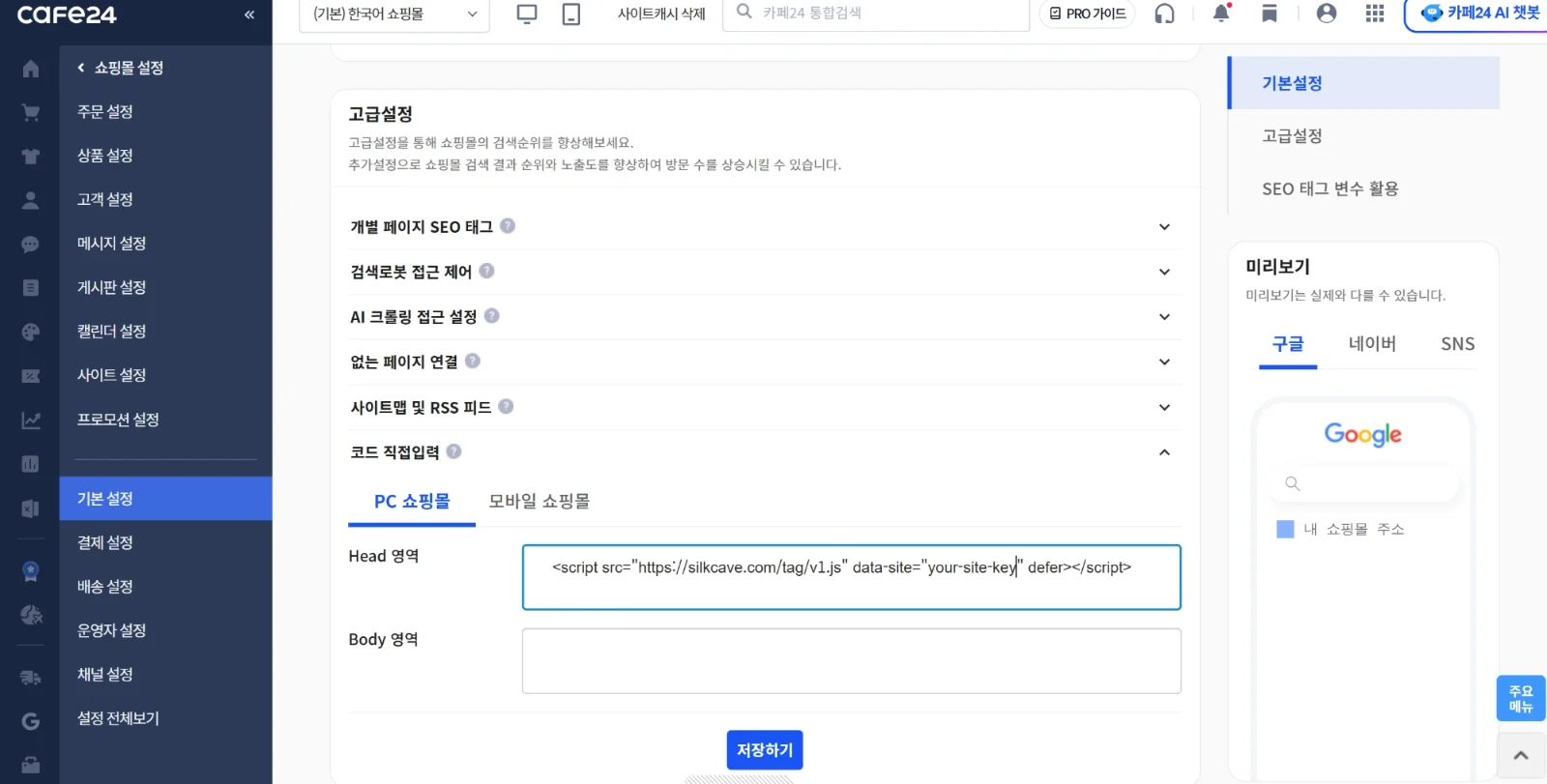 Cafe24 admin capture in Korean · example code
When a store decides whether to add virtual try-on (also called virtual fitting), the questions it asks are usually much the same. This post groups them in the order a store adopts it and notes what to look at in each group to decide. The answers link to the frequently asked questions, which describe what the product does today.
Does it fit my store?
There is one test: you need to be able to add one line of script to the head of every page from your admin. A store without a platform-specific guide installs with the general guide, and marketplaces where you cannot add the line are not covered. Platforms with a guide are listed in which stores it works with, and whether you need a developer or data access is answered in do I need a developer and access to product or member data.
Installing and verifying
Installing means pasting the line the console gives you into the head field of your admin and saving. Where it goes differs by platform, so there are separate answers for Cafe24, Sixshop standard and Sixshop Pro, and imweb, Shopify and self-built stores; Cafe24, Sixshop and imweb are Korean store platforms. If your admin has separate fields for PC and mobile, paste it into both. After pasting, open a product page once; the server finds the line and the site overview turns to Verified. While a trial or plan is running, Try on already shows as the site waits for verification. If it does not move on, go through when verification does not move on in order.
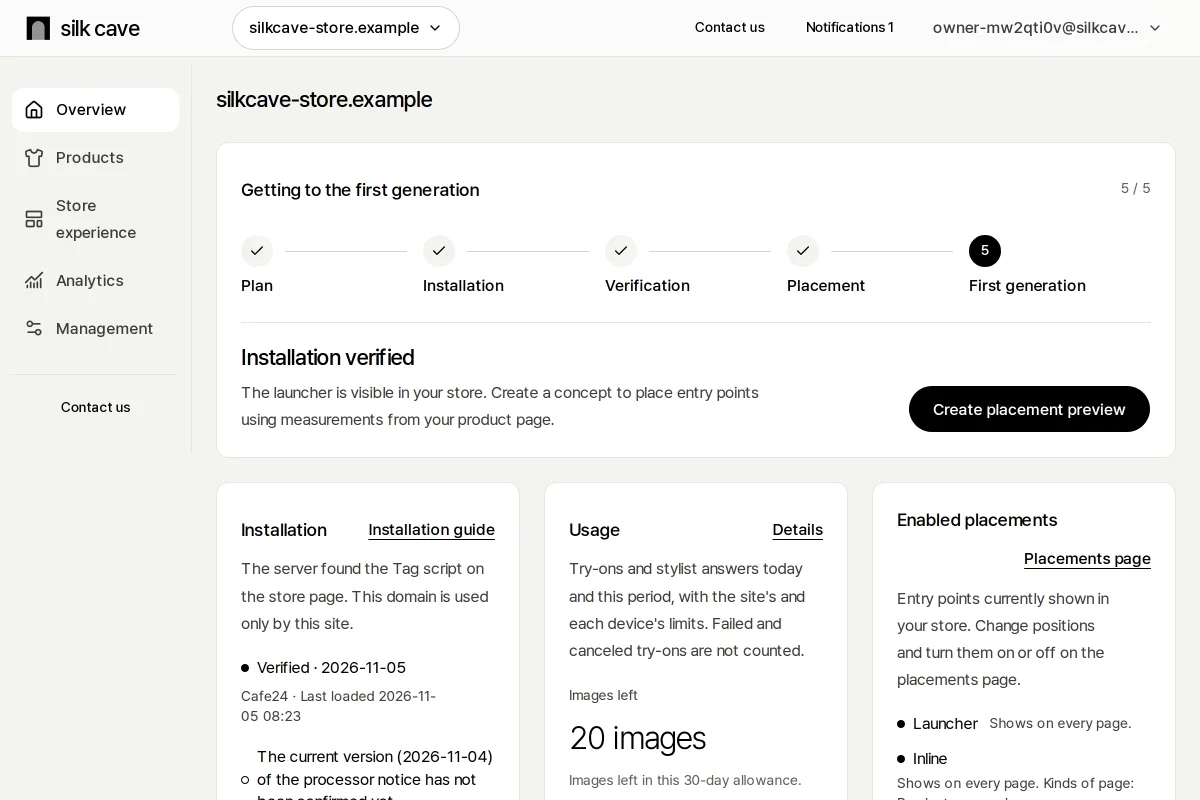 Console capture · fictional site
Speed and overlapping buttons
The first things stores ask about a new script are whether pages slow down and whether it overlaps the chat button they already have. What loads first and what loads after it is in whether it slows your store down, and what moves when buttons overlap is in when it overlaps a chat button. Start by checking whether your store has buttons fixed to the corners of the screen.
Product photos
It uses the photos already on your product pages, with nothing reshot, so the judgment comes down to what your main photos look like. Photos that work well and photos that are hard are shown with examples in whether existing product photos work; hold a few best sellers up to them. When one photo holds several garments, see changing only the top or the bottom.
Shoppers' photos and what happens to them
What photo to upload, where and for how long it is kept, and whether results can be recognized as AI-generated are questions shoppers may bring to your store. The answers are in the photo shoppers should upload, what happens to shoppers' photos and whether shoppers know the result is AI-generated. The console's installation screen also gives you the processor notice to add to your store's privacy policy.
Pricing and limits
Each site has one plan, and it is not pooled with other sites. Prices and allowances are in the pricing table, and the way a small store can try it first is in what a small store pays to try it. For payment see how to pay, and for limits see what shoppers see. The whole site's allowance and each shopper's (each device's) limit are separate.
How far size goes
Virtual try-on shows the garment on the shopper's photo; it does not guarantee that a size fits. With garment measurements and the shopper's body details, a fit report for each size is added, and shoppers see only measurements the seller checked and saved, or automatic values read with certainty. The console's product screen shows the state of each product's measurements. How the two differ and how far each goes is in virtual try-on and size recommendation.
When you are stuck
If Try on does not appear on some page, enter that page's address in Check an address on the console's placements page. It tells you whether an entry point stands on that address and, if not, why. If you are still stuck, send it through Contact us; where to send it and what to include is in where to ask and how soon the answer comes.
Checklist before you start
- You found where your admin adds one line to the head of every page.
- You saw your product page with Silk Cave on it in preview from a product address.
- You tried the shopper's side in the demo store.
- You held the main photos of your best sellers up to photos that work well.
- You can explain to shoppers how their photos are kept and that results are marked AI-generated.
- You know how to turn it off and how to undo it by deleting the line.
See it on your store's product page
Enter a product page address and see it with Silk Cave on it right away.