Install Silk Cave Virtual Try-On on Cafe24
Connect Silk Cave to a Cafe24 store through the app. Check permissions, link your site, review product data, test mobile placement, and understand what to check when removing the app.
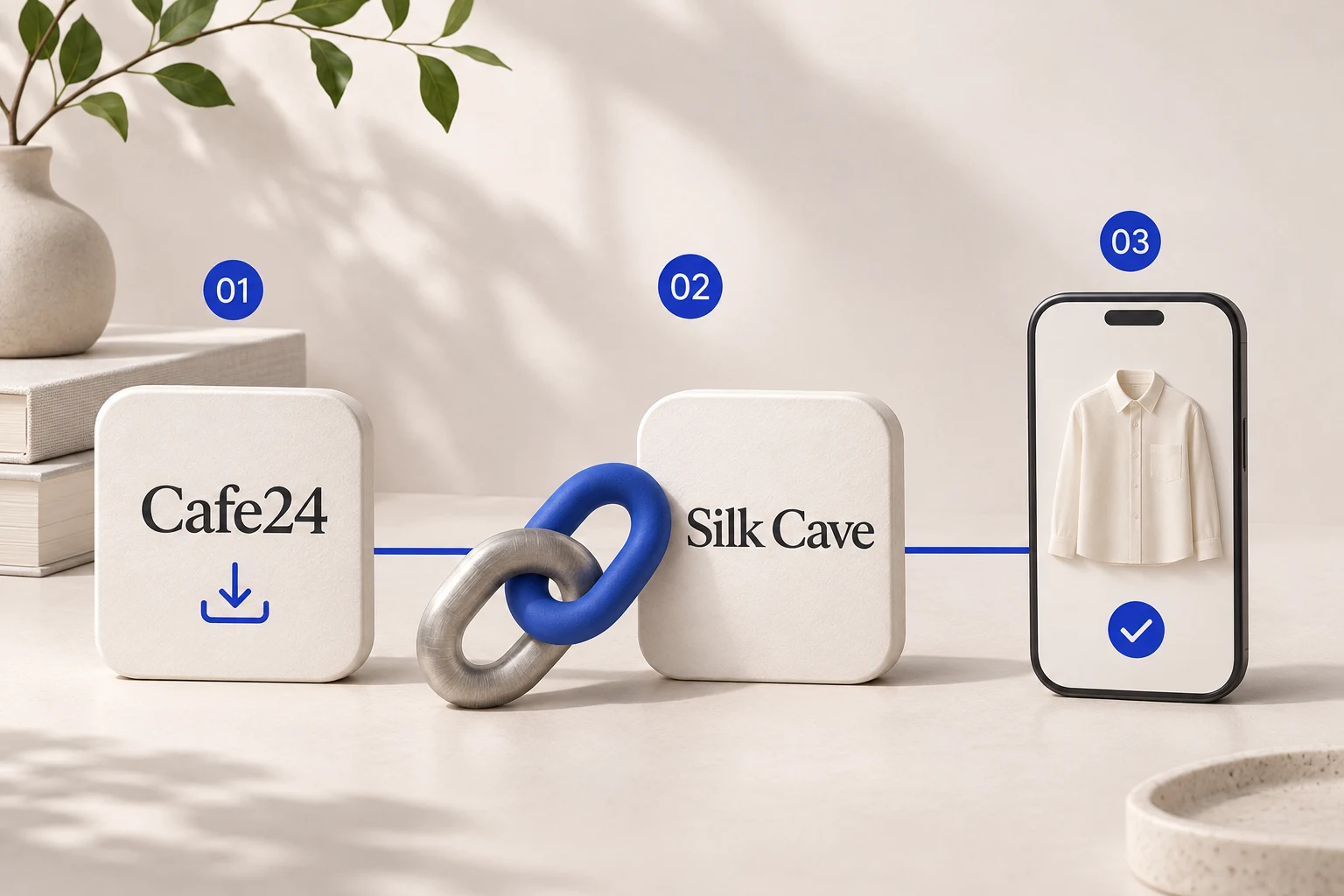 AI-generated installation illustration
Connect virtual try-on to a Cafe24 store through the Silk Cave app in its app store. After installation and site linking in Silk Cave, Cafe24 loads the Tag on your storefront. This app installation does not require adding code to individual products or editing the head field in search engine optimization settings.
This guide covers app connection and checks on the product page shoppers use. The cover is an AI-generated illustration of app installation, site connection, and product-page checks. Explore the shopper experience in the demo store. To understand the experience you are adding, start with Introducing Silk Cave.
Prepare before installing
- Have the store's primary operator account available to approve Cafe24 app permissions.
- Check the Google account you will use for Silk Cave and the store's primary domain. If you already registered the site, use an account that manages it.
- Choose a product page shoppers can actually access. A clear main product photo makes it easier to spot an incorrect image selection.
- Review the processing notice to include in your store's privacy policy. The connection screen, privacy policy, and data processing agreement explain the required notice and checks.
If you are still deciding whether to install, read the adoption checklist for photo requirements, costs, and the scope of sizing features.
Install the app and review permissions
Find Silk Cave in the Cafe24 app store and install it. The store's primary operator reviews the permission screen. App read/write access and store, product, and analytics read access support app connection, Tag installation, product information, and store aggregates.
Store analytics and shoppers' personal information are different. Silk Cave reads daily store metrics within the approved scope; it does not retrieve store customer membership records or individual order details. Check the app data permissions and privacy policy for the exact fields.
If the app does not appear, use the support instructions to check listing and connection availability. Do not install a similarly named app or substitute an old code installation guide.
Link an existing or new site in Silk Cave
After approval, you return to Silk Cave. Sign in with Google, check the store address and privacy notice, and link the site. If you already created a site at the same address, the connection attaches to it. You do not need to create a duplicate site first.
Start the free trial and check the connection status in the console. With the Cafe24 app, Tag installation and domain verification are part of the connection flow. Do not paste another installation script into the storefront. If an older manual Silk Cave script is present, identify it for cleanup to avoid duplicate installation, without changing other services' scripts.
If the account or site is unexpected, check the signed-in account and store address before repeatedly creating new sites.
Review products and sizing information
In the console's product screen, compare a representative product's name, photos, color and size options with its storefront page. The app connection also reads the product catalog, descriptions, and size guide information. Check extracted measurements and materials against the actual product documentation and correct them where needed.
Reading a size chart does not guarantee fit. The difference between try-on and sizing features explains the roles of try-on images and measurement-based fit reports. Do not invent measurements when the product description has none.
Check product pages and mobile placement
Open a public product page again and check the following in order.
- Confirm that a Try on entry point appears and opens the photo of the product being viewed.
- In the console, review the positions and applicable addresses for the photo chip, inline purchase-area button, and corner launcher.
- On a phone, check that chat buttons, fixed purchase bars, and option selectors remain usable. See the overlapping button guidance when adjusting placement.
- Try your own photo or an available avatar. Check the AI-generated label on the result and the return to the product's purchase area. A try-on uses your allowance, so check the current limit too.
- Move to other representative products and confirm that the photo changes and entry points appear only on the intended pages.
Do not use shoppers' photos for installation checks. For ideas to improve the page after installation, read the product page checklist. That article uses Shopify examples; it does not describe Cafe24 admin menus.
When the connection or button does not appear
| Situation | Check first |
|---|---|
| Installation did not finish linking | Whether you completed site linking in Silk Cave and signed in with the intended Google account |
| You are checking another domain | Whether the connected domain and the shopper-facing product address belong to the same site |
| The button is missing on one product | The address check and show/hide settings in the console's placements screen |
| The button overlaps content or a purchase bar | The phone layout and the console's placement and overlap settings |
| Verification is pending or products cannot be read | The console's reason, public product-page access, and verification guidance |
If you still need help, send the platform, public product address, time, and error wording through Contact us. Hide tokens, customer information, and order details in screenshots. Check the current connection before repeating app installation.
Check payment and disconnection
Sites connected through the Cafe24 app use Cafe24 payments. Check the pricing table for prices and allowances and the payment guidance for the payment route. Read the selected plan's renewal and termination conditions before ordering.
To pause Try on visibility, see how to turn it off. To end the app connection, remove the app in the Cafe24 admin, then check a public product page to confirm that the Tag no longer appears. Check the app removal, service period, payment, and refund status separately. Do not remove scripts belonging to other services.
Installation flow and data scope checked on November 16, 2026, against Silk Cave's current connection guidance and policies. Check the app-store listing and permission screen again when installing.
See it on your store's product page
Enter a product page address and see it with Silk Cave on it right away.
Related reading
 Why does AI change body shape when you only change a shirt’s color?
Two experiments show how editing clothes can change the person wearing them. SilkCave uses the shopper’s photo and garment measurements to place the cuffs, then checks for changes in body shape.
 10 Ways to Reduce Returns at an Online Clothing Store
From garment measurements and fit reviews to packing and delivery, learn which changes have research behind them and how to test their effect on returns at your store.
 8 AI Virtual Try-On Tools Compared for 2027
Compare eight AI virtual try-on tools for fashion stores, from storefront apps to 3D fitting rooms and developer APIs, with features, pricing, setup requirements, and use cases.